
Getting Started with Clash Mi
Last updated:
Clash Mi brings Mihomo configuration management to mobile and desktop. This guide shows how to install the app, add a subscription from My Profiles, and check that the selected profile is in use.
What is Clash Mi?
Clash Mi is a graphical client with a built-in Mihomo core. A profile holds your proxy entries, policy groups, and routing rules. In Rule mode, the rules decide whether a request connects directly or uses a proxy group.
How to Download and Install?
Get Clash Mi for your platform. Use the App Store on iPhone or iPad. On Android and desktop, choose the package matching your operating system and processor from the download page. Follow its platform-specific setup instructions and launch the app.
Interface Overview
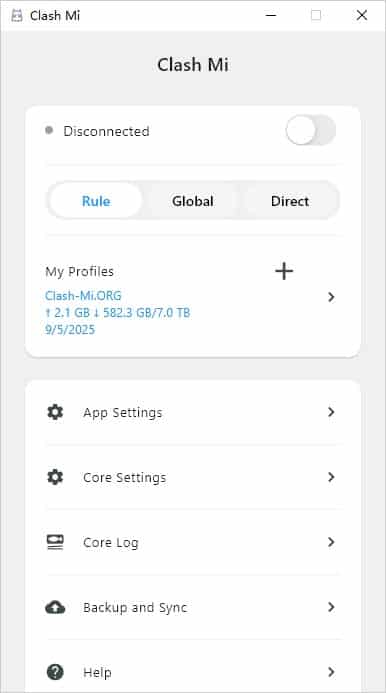
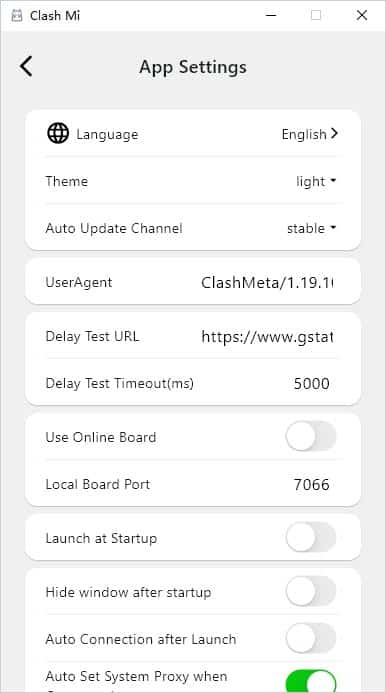
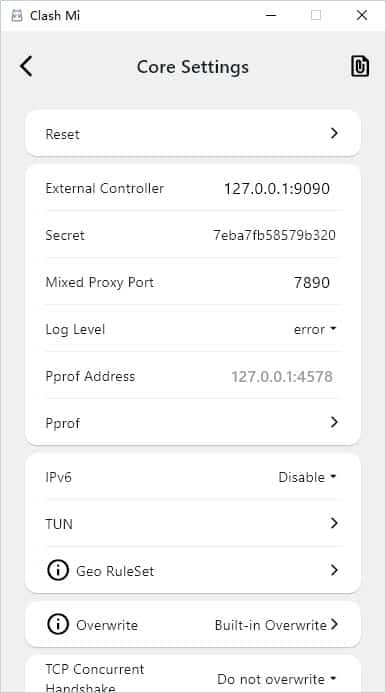
Open My Profiles to add or change configurations. The Proxy view lets you inspect groups defined by the active profile and choose a node within a group. Use the connection switch on the main screen when you are ready to connect. Menu wording can vary by device and language.


Servers
Copy the Clash or Mihomo YAML subscription URL from your provider dashboard, or prepare a compatible configuration from your own server. If the provider gives you more than one link, choose the one labeled for Clash or Mihomo.
Quick Configuration
- Open My Profiles, select +, and choose Add Profile Link.
- Paste the complete URL, give the profile a recognizable name, and save it.
- Select the new profile and choose Rule mode. Then start the connection and approve the system VPN prompt if it appears on your phone.
- Open a site you normally use. Check the profile’s proxy group and the app’s traffic display to see that the expected connection is active.
If the group list is empty, check that the imported profile is selected and try refreshing it. If one group fails to connect, test another available node.